Describe the tone. Get the rig.
A desktop app that turns a plain-English description (a song, an amp, a pedalboard, a feel) into a complete, valid rig for your HeadRush floor unit, then pushes it to the pedal over your network. Amp and cab pairing, drive stacking, time-based effects, block order and levels, all decided together instead of one knob at a time.
Mac {{ macVersion }} · Windows {{ winVersion }} · Free · Runs on your Claude subscription or your own API key
Say what you want
“Edge-of-breakup AC30 with a slapback and a swell for the bridge.” Reference a record or a rig, or just say how it should feel.
The app builds it
Blocks are chosen and ordered against your pedal's own model catalog and parameter schema, so what comes back is a rig the hardware actually accepts.
Push and play
The app finds your unit on the network and writes the rig as a new preset. It checks the device, you confirm, and you play. Existing presets are never overwritten.
One window, one prompt, a whole rig
Native SwiftUI on the Mac, Electron on Windows. Both carry the same model catalog and the same dark Studio Rack design language, and both produce the same rigs, each following its platform's conventions for where settings and keys live.
Feature tour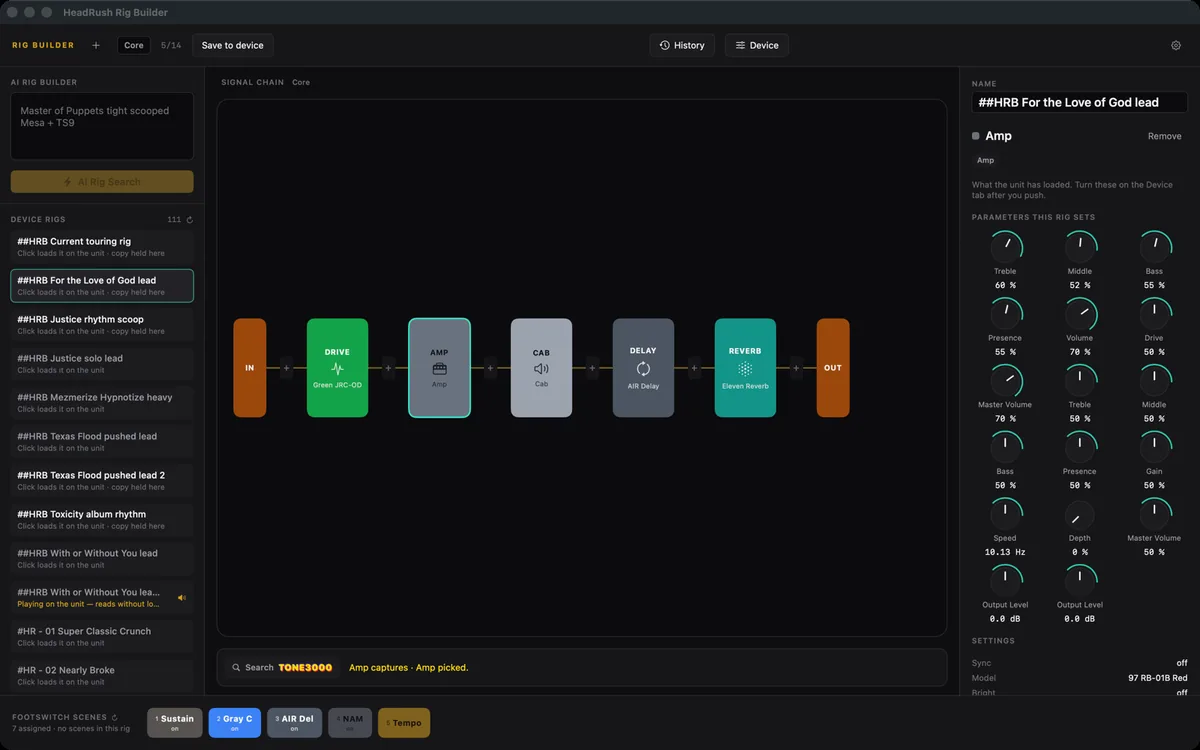
Everything it decides so you don't have to
Modelling gear buries its good sounds under menus. The app does that digging for you and hands back something you can plug in and judge with your ears.
Plain-language rig prompts
Ask for a tone the way you'd ask a bandmate: “Metallica, Master of Puppets, rhythm.” Genre, era, a specific record, a specific amp; the app does the translation into blocks and parameters.
Whole signal chain, in order
Amp, cab, drive, dynamics, modulation, delay and reverb are picked as a set and drawn as a signal rail, left to right the way signal travels. One card per block, with every parameter the search set and a count of how many of the unit's 14 slots the chain uses.
Built to what the hardware accepts, and to a standard
HeadRush's published model attributions and the unit's own parameter schema ship inside the app, so “Mesa Mark IIC+ with the mids scooped” comes back as the pedal's actual 85 M-2 Lead. It cannot reach for a block the hardware does not have, and rigs are re-verified before they're staged. The search also works to one written build standard, shared by the Mac and Windows apps: precision where the role pays for it, delay times worked out from the tempo rather than guessed, and a self-check before it answers.
Sourced from the record
With a web-search-capable backend, the app looks up what gear was actually on the record and tags every claim CONFIRMED, REPORTED or INFERRED, with a source for each. It is forbidden from inventing interviews, quotes or URLs to fill the gaps.
Push straight to the unit
You never move a file yourself. The app finds your unit on the network and writes the rig as a new preset: it checks the device, you confirm, and that's it. If the name is taken the rig saves as “Name 2” instead of replacing anything. The HeadRush Remote Editor lives in a tab inside the app for knob tweaks afterwards, and a found rig even names the real amp it identified and offers NAM captures of it via Tone3000, fetched by the unit itself.
Your subscription or your key
Six backends: the Claude CLI, which is the default and runs on the Claude subscription you already have without a key; a Claude API key; the Grok CLI; a Grok API key; a Google key for Gemini; or an OpenAI key. Keys live in the macOS Keychain or Windows DPAPI. You never create an account, nothing is reported back, and no server of mine sits anywhere in the path.
Footswitch scenes, authored from the console
A scene is the unit's own table: ten scenes, fourteen slots, each block on, off or left alone. The app reads them off a rig, draws the real pad layout for your chassis, and lets you author them where you can see the whole chain. Click a pad to pick it. Right-click it to record what the rail is doing as that scene, to rename it, or to give it a colour. Scenes save with the rig, every action can be undone, and Save to device writes them back the way you laid them out, keeping the pad numbers a Hardware Assign gave them.
Captures, and the unit's own impulse responses
The captures already on the pedal are listed a folder at a time and typed as amp, pedal or outboard, filtered by the block you have selected. A C-Verb can be handed one of the unit's own impulse responses with Choose file, with nothing to download, and the app now reads the User folders all the way down, so files you loaded into a subfolder by hand are found too. A search that wants a reverb names one the unit actually has. One NAM capture and one C-Verb per rig, counted separately.
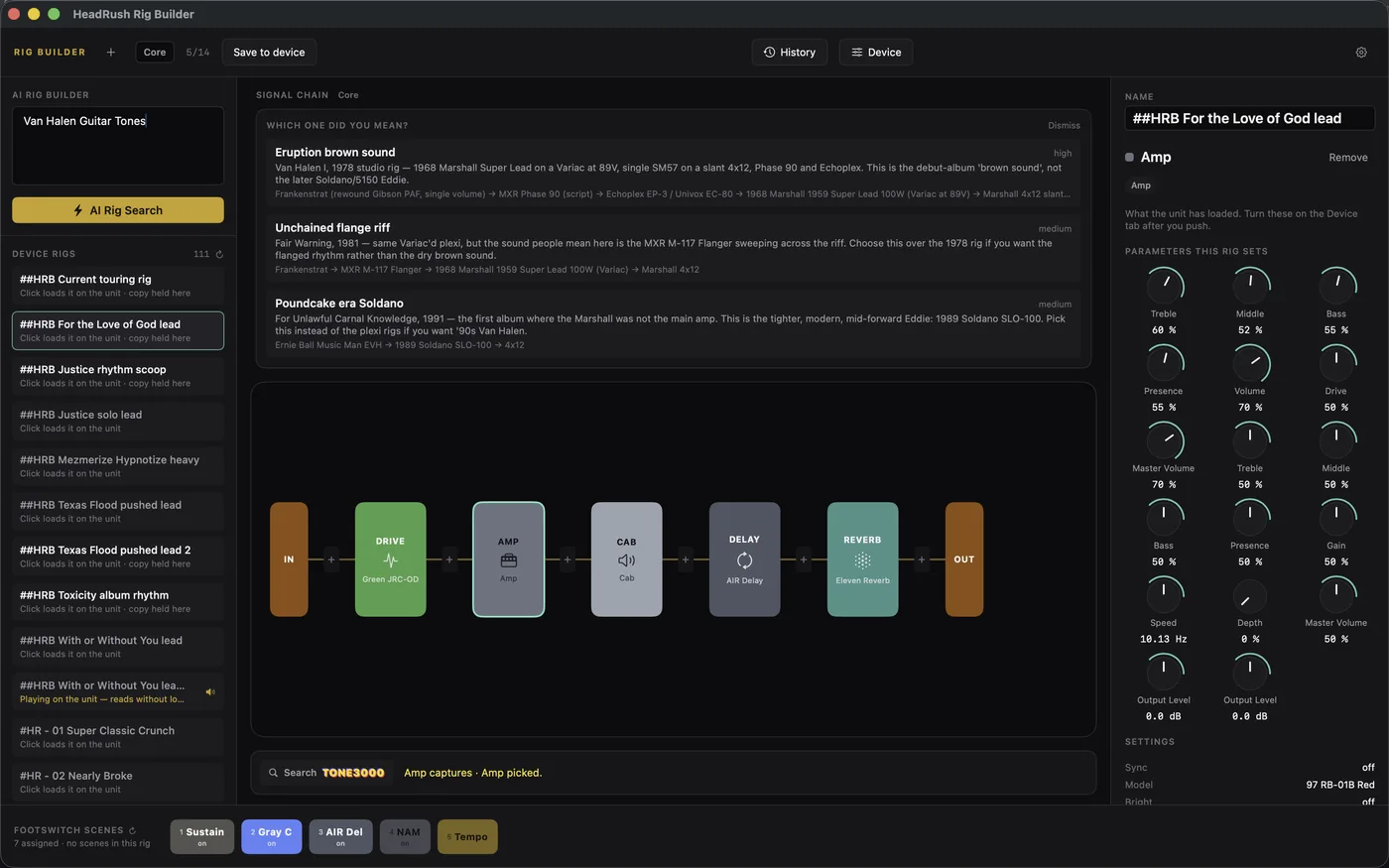
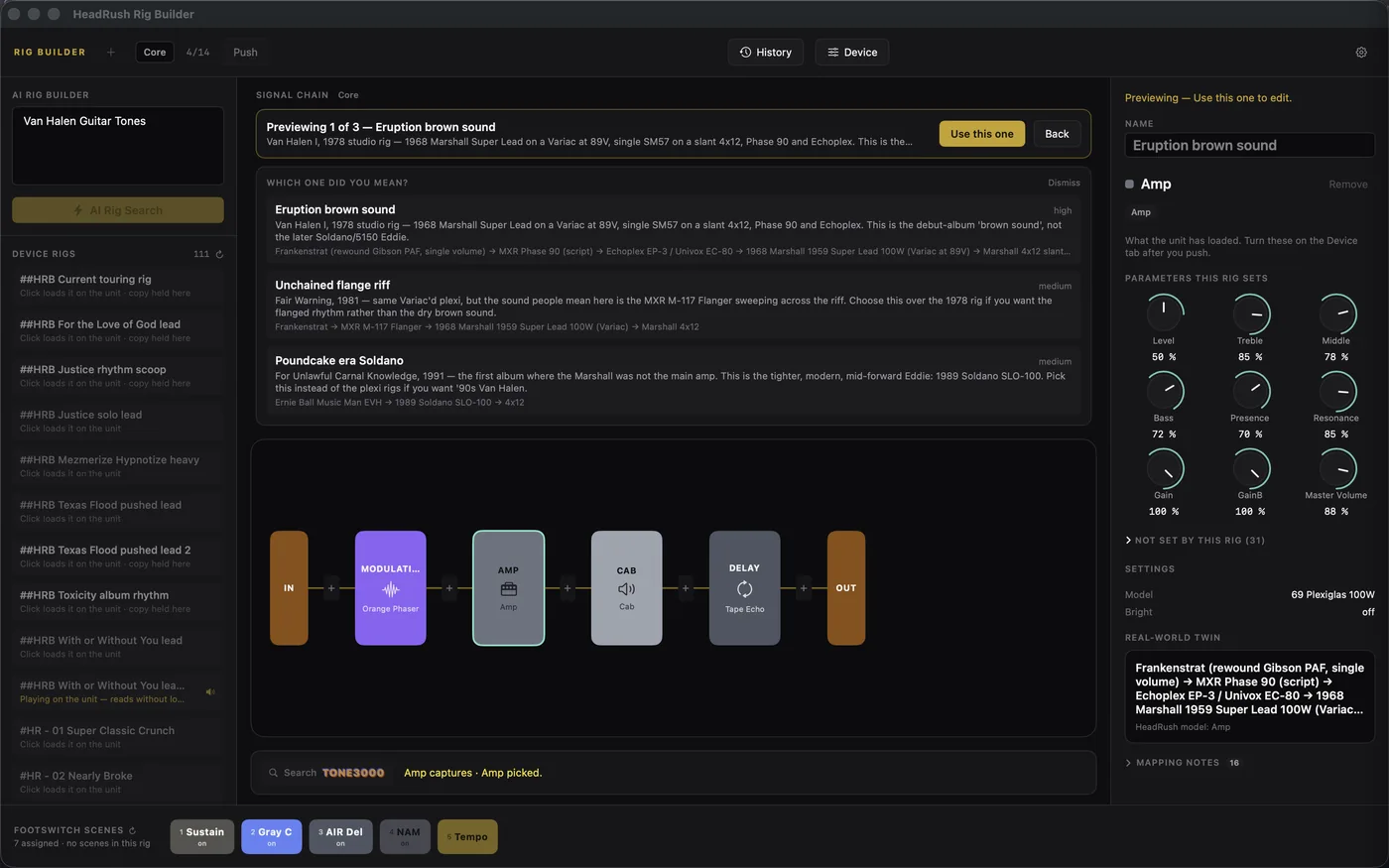
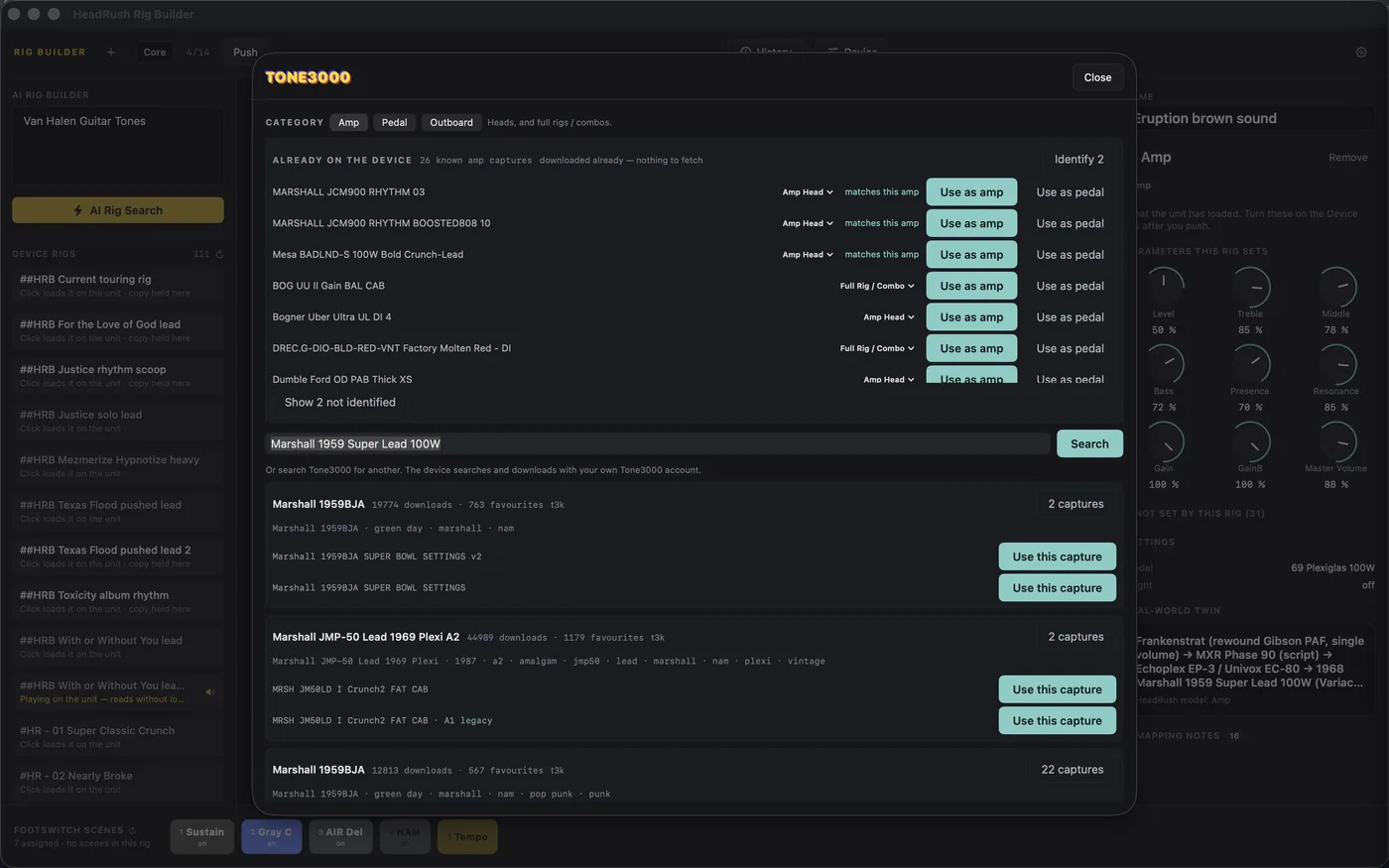
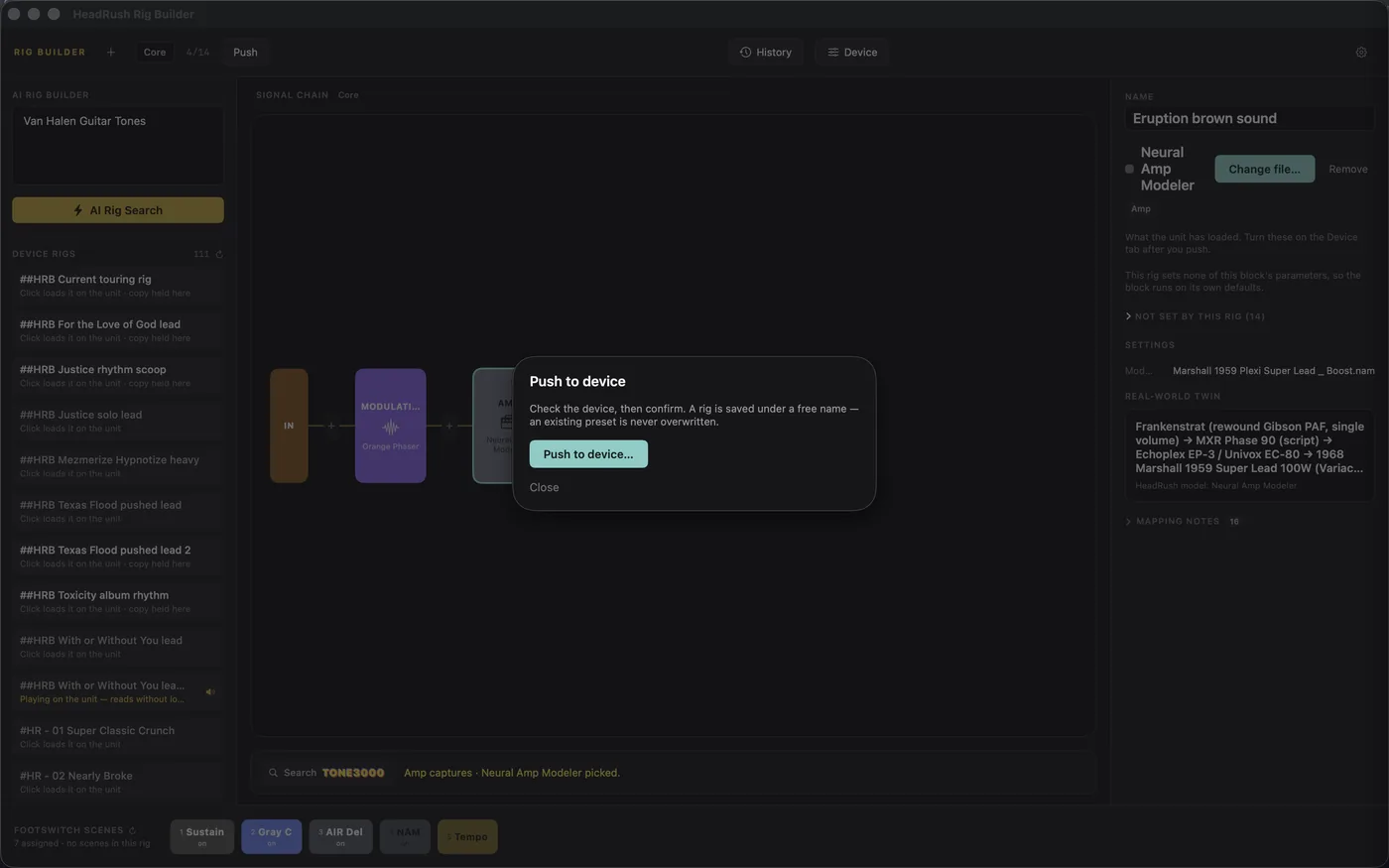
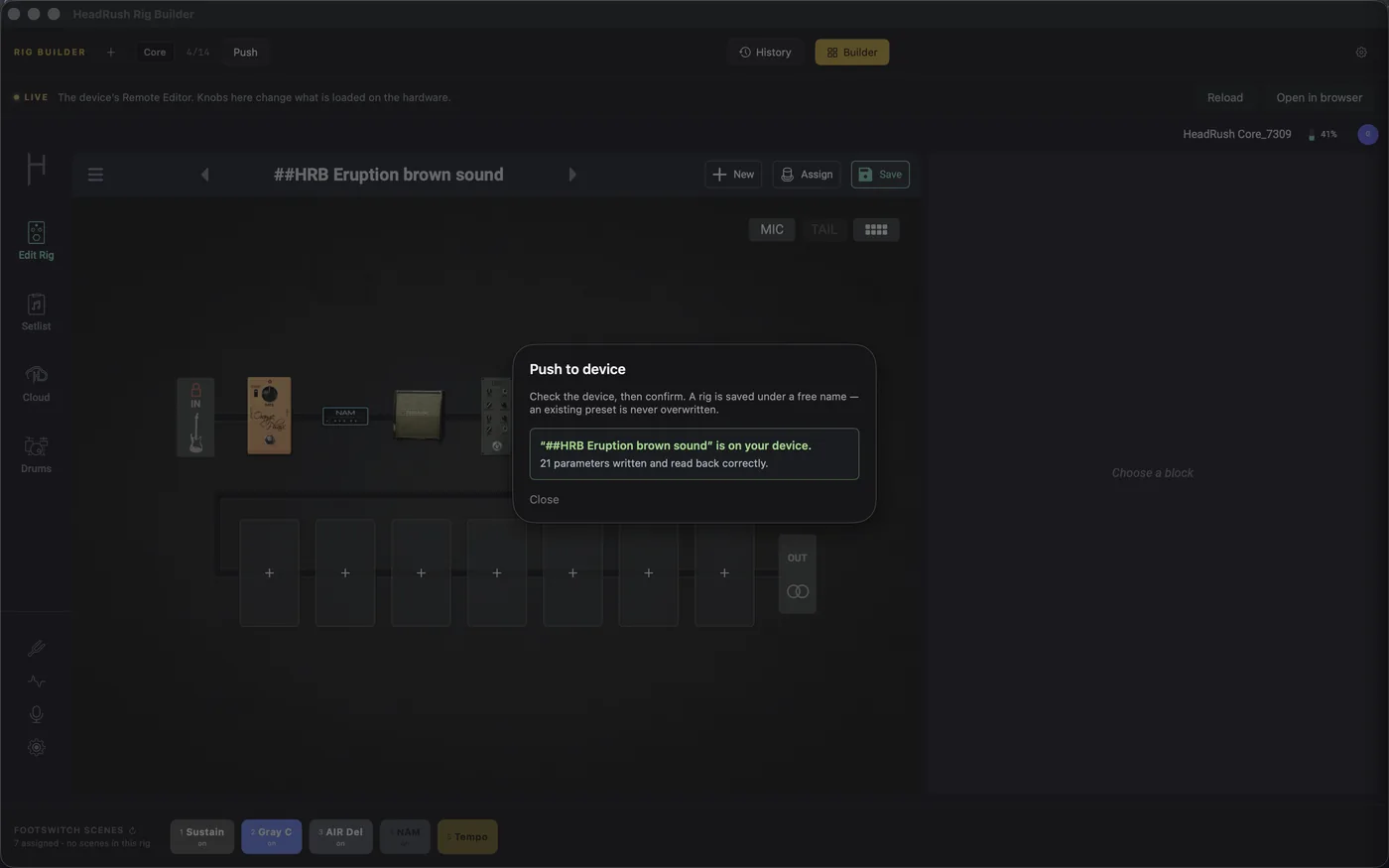
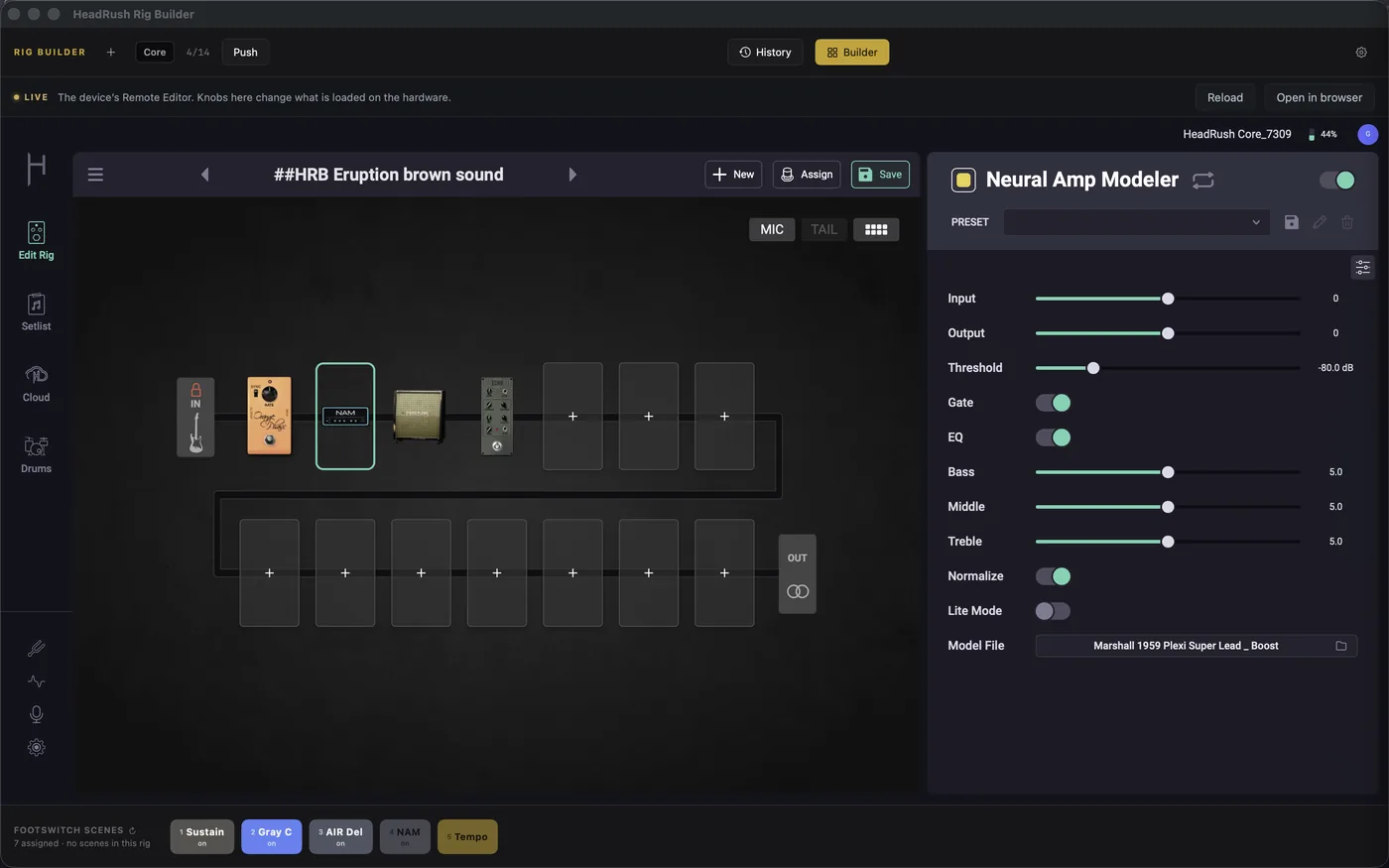
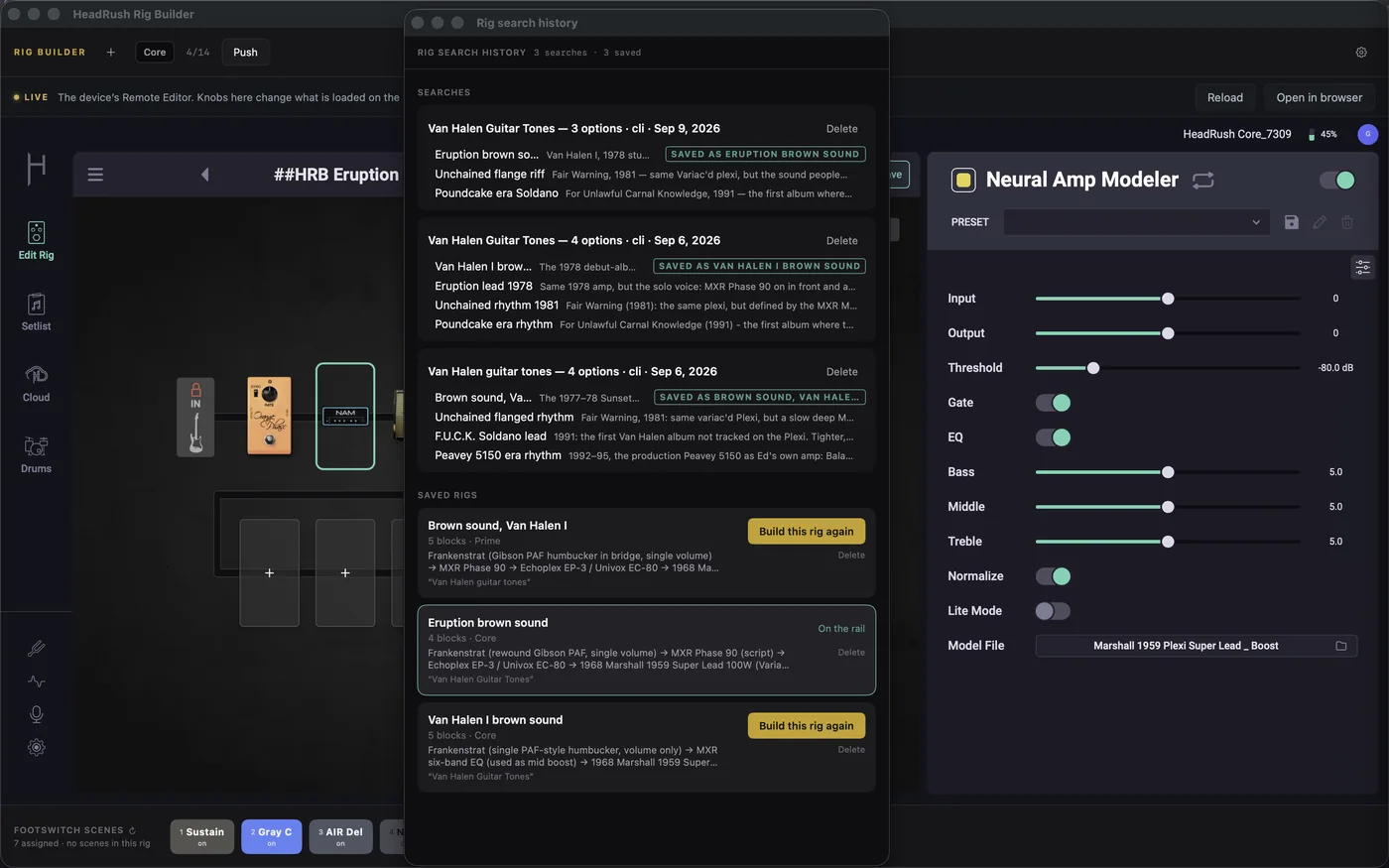
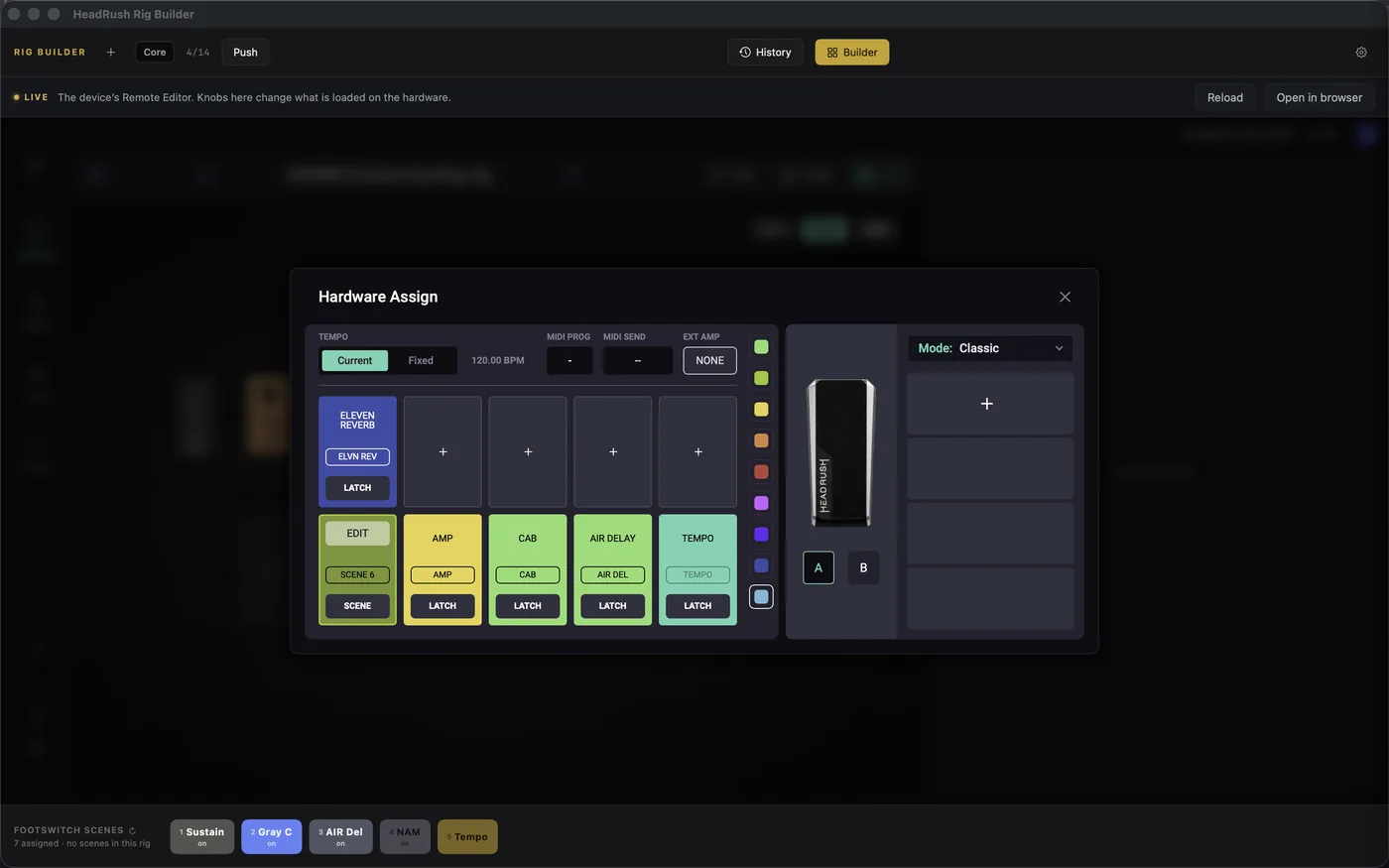
Real screens from the macOS build.
A full walkthrough: describing a tone, reading the result, and pushing it to the pedal.
Three floor units, one workflow
Prime, Core and Flex Prime share the Core's engine, so a rig that fits one fits all three. Point the app at whichever is on your network and every build lands as a valid preset. Footswitch scenes are drawn on the pad layout of the chassis you picked; the pads the unit keeps for itself, previous and next rig in Hybrid mode, are shown but cannot be authored.
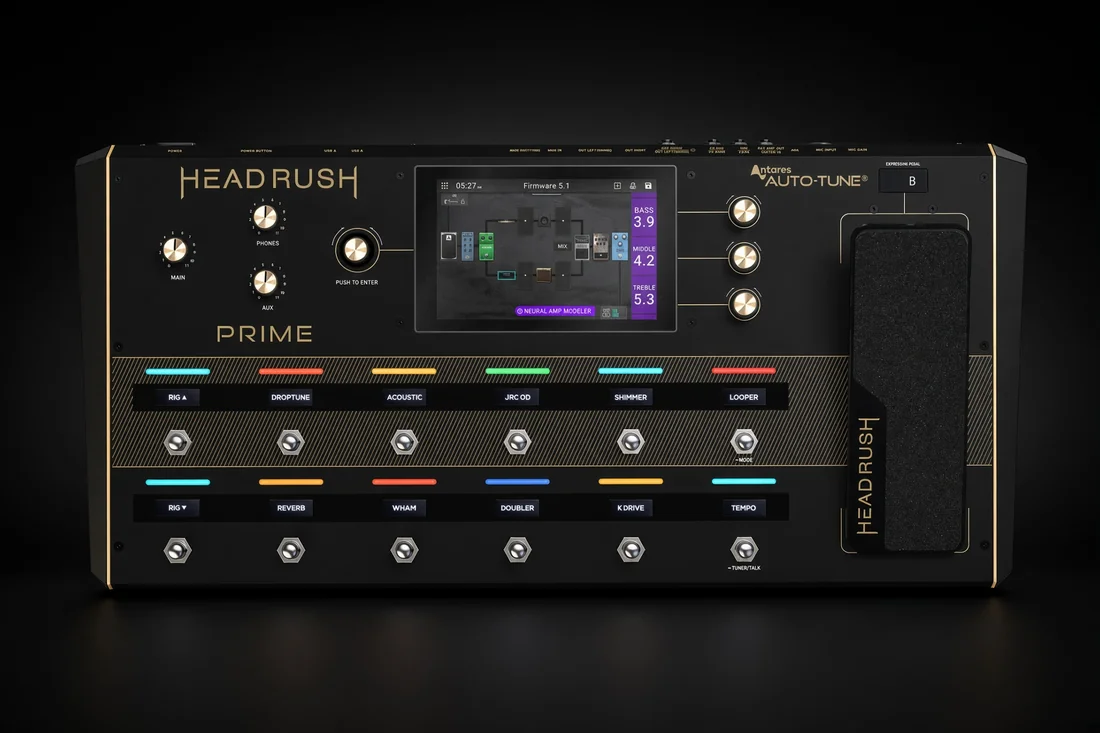
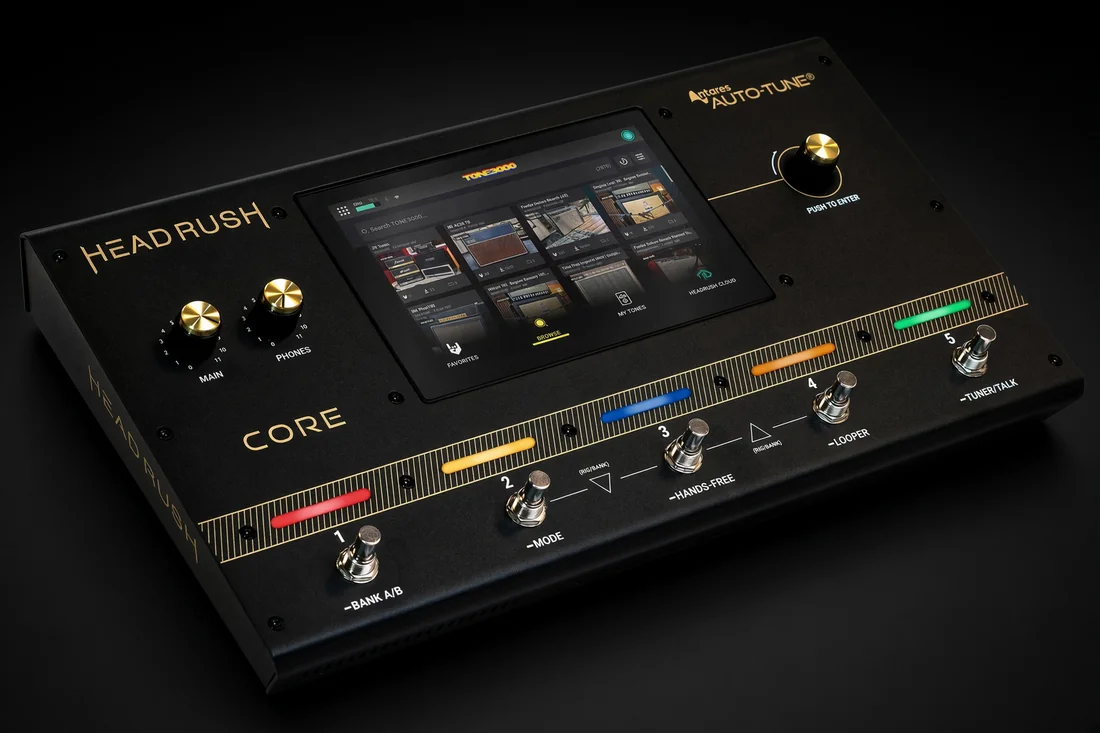
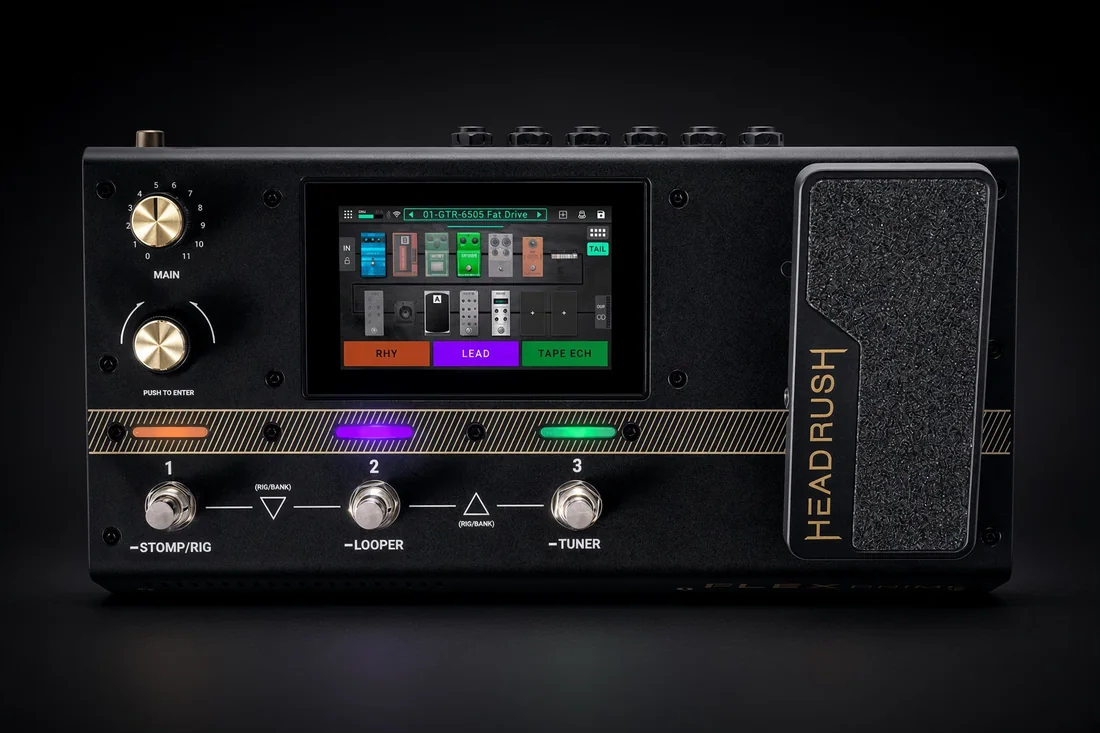
The renders on the cards above are generated images, not photographs, and this project is not affiliated with or endorsed by HeadRush or inMusic Brands.
| Unit | Rig building | Chain | Transfer |
|---|---|---|---|
| Prime | Full | 14 slots, Core engine | Push over the network (mDNS) |
| Core | Full | 14 slots, the reference | Push over the network (mDNS) |
| Flex Prime | Full | 14 slots, Core engine | Push over the network (mDNS) |
The app reaches the unit by its mDNS hostname, headrushcore.local by default, rather than a raw IP, which goes stale with the DHCP lease. A push always saves a new preset, so nothing on the unit is overwritten.
Install and use it on a Mac
Start to finish: get the app, pick a tone-search backend, build your first rig, push it to the pedal.
-
01
Download the app
Grab the latest DMG from the download page and drag the app into /Applications. Apple silicon and Intel are both covered by the universal build; it needs macOS 14 Sonoma or newer.
-
02
Opening it the first time
Release builds are Developer ID-signed, notarized and stapled, both the app and the disk image, so Gatekeeper lets it open normally on first launch, even offline. If macOS ever warns you, you're holding a development build rather than a release.
-
03
Choose a tone-search backend
Settings (⌘,) → AI backend. The default, Claude CLI, runs on your existing Claude subscription, and if you have Claude Desktop installed it works with no setup at all. If you don't have the CLI, paste an Anthropic API key instead (it doubles as the CLI's fallback), or use the Grok CLI, an xAI key, a Google key for Gemini, or an OpenAI key. Keys are stored in the Keychain and sent only to the provider you chose. Test backend makes one real request, so a key that is saved but has no credit on it says so here rather than at your first search, which is the likeliest first stumble: a key is billed separately from the same company's chat subscription, so ChatGPT Plus does not pay for OpenAI API calls. Keys are made at platform.openai.com/api-keys, with credit added under Billing in the same dashboard.
-
04
Point it at your pedal
Pick your chassis at the top of Settings (Prime, Core or Flex Prime) and the app addresses that unit by its own mDNS name. That is the only thing to set, and Check connection names what answered, so you can tell a wrong pick from a quiet network. Leave it as the mDNS name rather than typing a raw IP: the pedal's DHCP lease goes stale, and a hardcoded address makes a working unit look offline. Tone search works with the pedal switched off; only push and the Device tab need it on the network.
Prime        headrushprime.local
Core         headrushcore.local
Flex Prime   headrushflexprime.local
-
05
Search your first tone
Describe it, say “Metallica, Master of Puppets, rhythm”, then review the result on the signal rail: every block in signal order, every parameter the search set, and how many of the unit's 14 slots it uses. Give it a name in the inspector, to the right of the grid, something you'll recognise on a dark stage.
-
06
Push it to the pedal
Push is two steps: the app checks the device, then you confirm. It always saves a new preset, so if the name is taken the new one becomes “Name 2” and nothing on the unit is overwritten. Knob tweaks afterwards happen in the Device tab, which is the HeadRush Remote Editor running inside the app.
“No backend found”, but only from the Dock
A GUI app launched from the Dock doesn't inherit your shell's PATH, so a Claude CLI installed in ~/.local/bin is invisible to it. Three real fixes: install Claude Desktop (the app finds its bundled CLI), paste an Anthropic API key in Settings, or launch via open from a terminal. Symlinking into /usr/local/bin won't help.
Search fails or times out
On an API backend, usually the key: check it's pasted whole, still active, and has credit on the provider side. Under Claude CLI, a saved key is the automatic fallback when the CLI fails.
Push can't find the unit
Same network as the Mac, and reached by hostname. A second unit of the same model shows up with a suffixed mDNS name, which goes in the Other… field. Guest and isolated Wi-Fi networks often block mDNS entirely.
Install and use it on Windows
Same six steps as the Mac guide, with the paths and prompts Windows actually shows you. You don't need any developer tools.
-
01
Download the installer
Take the installer from the download page. It's 64-bit, for Windows 10 or 11. There's also a portable exe that runs without installing anything.
-
02
Get past SmartScreen
The build isn't code-signed yet, so Windows shows “Windows protected your PC”. Click More info → Run anyway. If your browser blocked the download, keep it from the downloads list first. The installer needs no admin password and puts a shortcut in the Start menu.
-
03
Answer two questions
First launch asks two things: how tone search should think (your Claude subscription via the Claude Code CLI, which is the default, a Claude API key, your Grok subscription, a Grok API key, a Google key for Gemini, or an OpenAI key), and which HeadRush you have. Both are skippable and changeable later in Settings, which can also probe a backend without running a full search, and that probe is worth running: an API key is billed separately from the same company's chat subscription, so ChatGPT Plus does not pay for OpenAI API calls and a new key answers nothing until credit is added at platform.openai.com. A saved key is stored encrypted with Windows DPAPI, never in plain text.
-
04
Search your first tone
Type what you're after, say “Metallica, Master of Puppets, rhythm”, watch the progress stream, then review the staged result on the signal rail: every block in order, every parameter set, and how many of the unit's 14 slots it uses. Give it a short, stage-readable name.
-
05
Push it to the pedal
From the Library, push the rig: the app checks the unit, you confirm, and it lands as a new preset. A taken name becomes “Name 2”, and existing presets are never overwritten. Knob tweaks afterwards happen in the Unit tab, the HeadRush Remote Editor running inside the app.
-
06
Stay updated
File → Check for Updates asks the releases page and opens the download when something newer exists; an “Update” pill also appears in the top bar. Installing over the top keeps your library and settings, and the app never updates itself behind your back. Everything the app saves lives here (File → Open Data Folder takes you there):
%APPDATA%\WinHeadrushRigBuilder
Antivirus quarantines the download
Unsigned installers trip heuristics. Restore it and add an exclusion for the install folder.
The app can't find the unit
Reach it by hostname, headrushcore.local, rather than by IP: the unit answers over mDNS, and its IPv4 lease can be stale while the hostname still works. Both machines need to be on the same network, and guest or isolated Wi-Fi usually blocks mDNS.
Something else misbehaves
File → Open Data Folder, then logs\server.log. That's the file to attach to a bug report.
Get {{ appName }}
Free, built from source you can read. Mac {{ macVersion }} · Windows {{ winVersion }}.
macOS
Universal build for Apple silicon and Intel, macOS 14 or newer. Signed, notarized and stapled, so it opens without warnings.
Windows
64-bit for Windows 10 and 11. No admin rights needed; a portable exe is there too if you'd rather not install.
The Mac build is notarized and opens clean. The Windows build isn't code-signed yet, so SmartScreen warns on first run; the Windows guide covers the two clicks past it. The source repositories are private, so the downloads above are served from this site rather than from the repos.
Questions worth answering
Does this need an internet connection?
Only for tone search. That request goes to the AI backend you chose, and with web search on it verifies gear against real sources. Pushing to the pedal is local-network only, and your library works offline.
What does it cost to run?
The app is free. On the default backend, searches run through the Claude CLI on the Claude subscription you already have, so there is no key to buy and no extra bill. On an API-key backend you pay your provider per request instead. An API key is not the same thing as that company's chat subscription. ChatGPT Plus does not include OpenAI API access, and a Claude or Gemini plan does not cover their APIs either: an API key is billed separately and a new one needs its own credit before it will answer anything. The two CLI backends are the ones that ride a subscription you are already paying for.
Are my rigs or prompts uploaded anywhere?
No. There's no account, and no server of mine sits in the path. Search queries go to the backend you picked; rigs, settings and keys stay on your machine, with keys in the macOS Keychain or encrypted with Windows DPAPI.
Will it overwrite rigs I already have?
No. A push always saves a new preset, so if the name is already taken on the unit, the new one becomes “Name 2”, and so on. Existing presets are never touched.
Can it match a specific record?
The gear and broad settings for a well-known tone are well documented, and that part holds up. With web search on, every claim is tagged as confirmed, reported or inferred, with a source. The exact knob positions on anyone's amp are not documented anywhere, and your guitar, pickups and speakers are half the sound. Treat the result as somewhere sensible to start, then use your ears.
My unit isn't in the list.
Prime, Core and Flex Prime, which share the Core's engine, are the only units the app targets. Nothing is tuned or tested for anything else.
Anything I should know about my network?
The pedal's own API is unauthenticated, so anyone on the same network can read and write its state. That's the hardware, not this app. Keep the unit off shared and guest networks.